
How to fix an excel cell in formula
If you are writing any formula which needs to take reference to a particular cell. Then, you should have to fix that particular cell, so that your whole formula won't be a mess.
There is much more need of this fixing trick but over here in this particular article i am going to show the use of this trick with a simple example.

From figure,
C13= 40% be the required percentage to be taken out from A, B, C.
In G3, Write your formula as: =C3*D3, you will get the desired result but what if, if you want to copy that formula, To B and C. If you simple copy and paste the formula or simply drag it. You will get the wrong formula as the formula will keep moving in relation to the cell.
In order to solve this problem, you should fix the particular cell, which is cell C3. So that, A, B, C will relate to the Percentage in C3.
To do this, just type: $C$3 in the place of C3 in the formula, So the new formula should look like this, in G3: =D3*$C$3, now you can copy and paste the formula to I3 you will get your desired result.
The Use of Concatenate Function
The use of concatenate function is an addition if you know how to use this, What it actually does is that, it combines the text in different cell into one.

From Figure,
There are string of texts in D3, E2 and F3, I used the function called concatenate in D6.
What i did was, used =Contatenate(D3,E2,F3).
You can see the Result in D6.
The Use of Left, Right & Mid Function
What these function does is just opposite to the one that the concatenate function does.
Left separate the left string of the particular text string.
Right Function will separate Right side String form the particular text string.
Mid function will separate Mid string of the particular text string.

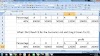
From Figure,
Lets Play with a string of text called "This is for a test purpose" which is in Cell B2.
I typed in C5 as: =left(B2,5). Why is that 5 for? 5 is the no. of characters which it will take from the Left hand side from B2. Note:(Space) is also count as an character, so "This " = 5 character is there in cell C5.
I typed in D5 as: right(B2,5). This has the same explanation as of above. Simply it starts from the right had side of the text string in B2.
I typed in E5 as: mid(B2,6,5). B2 is the reference cell, 6 is no. of characters from left hand side (to start copying), 5 is how many characters further you require to copy.
Hope you liked this article.
Check out other similar articles on excel, below. Thank you.



153 Comments
Wonderful article with useful and clear explanation. I really enjoyed by reading your blog post. Thanks a lot for sharing this amazing content with us.
ReplyDeleteHadoop Training in Chennai
very informative blog. Helps to gain knowledge about new concepts and techniques. Thanks for posting information in this blog
ReplyDeleteSEO Training in Chennai
This idea is mind blowing. I think everyone should know such information like you have described on this post. Thank you for sharing this explanation.Your final conclusion was good. We are sowing seeds and need to be patiently wait till it blossoms.
ReplyDeleteAndroid Training in Chennai
Hp Laserjet m1005 mfp Drivers
ReplyDeleteМистические силы и различные обстоятельства гадания деятелями науки не описаны, хотя различные люди в них верят. Мы будем вместе гадание онлайн - это проверенный порядок узнать судьбу с применением разнообразных объектов и рецептур. Комплекс воздействий, направленных на прогнозирование будущего, называют гадание.
ReplyDeleteJoycasino скачать на андроид – воспользуйтесь преимуществом стабильной игры и получите огромные бабки. Улучшение новейших процессов позволяет веб порталам существенно развить предлагаемые услуги. Игральные автоматы обрели существенную популярность на любом континенте.
ReplyDeleteПрисоединяйтесь к игральной площадке и ловите «вкусные» вознаграждения в личной учетной записи. В азартных играх «Франк» геймер сможет просто найти область авторизации на основной странице площадки. Регистрация на странице интернет-казино «Франк-клуб» не займет много времени. Сделайте грамотный выбор – frank casino официальный ваш вариант на победу!
ReplyDeleteКрасивый дизайн площадки радует глаз, а большое число игр гарантирует право опробовать свою удачу. Проверить свою фортуну можно только с помощью джойказино официальный сайт играть. Крупнейшее игральное заведение Джой Казино – это лучший вариант поднять реальные наличные.
ReplyDeleteЦена небольшого квадрата покрытия зависит от его особенностей, а также от места производства. Самой дорогостоящей керамогранитной плиткой является итальянская http://www.reisefuchsforum.de/members/eqogyw.6570/. Наши изготовители уже давно настроили продажу таких изделий, некоторые из которых не уступают западным аналогам.
ReplyDeleteЛучший выбор настенного покрытия может прикрасить любую кухню или санузел. Кафельная очень хорошо подойдет к каждому интерьеру. Отбирая доступный стройматериал как, например, http://kontour.by/index.php?subaction=userinfo&user=apaneduc без всяких сомнений придется рассмотреть максимальное число материалов. Сфокусируйтесь не только на напольной плитке иностранного изготовления, а также на российские варианты.
ReplyDeleteПоложительные стороны закупки икры в магазине «Красный жемчуг» http://office-adm.ru/forum/messages/forum2/topic7525/message135619/?result=new
ReplyDeleteЕсть большое число приемов заработать в инете. Самый эффективный метод – проверенные площадки по оформлению документации и выполнению элементарных операций в соц сетях. Как пример, hydra официальный сайт зеркало, в данном случае присутствуют актуальные хитрости подзаработать в мировой сети. Проглядывая сайт, вы легко заметите множество вариантов для увеличения собственного финансового положения.
ReplyDeleteВерсии крипты множатся изо дня в день в геометрической прогрессии. Всю программную информацию по перемещению альткоинов можно увидеть на странице площадки http://bbs.yx.dodjoy.com/home.php?mod=space&uid=348075. Наиболее популярными монетами стали Биткойн и Эфир. Отдельно взятая криптовалюта работает на собственном криптошифре.
ReplyDeleteБесконтактные выплаты все чаще вводятся в современную жизнь. На сайте http://shlfxl.com/shlf/home.php?mod=space&uid=49755 ?ты сможешь посмотреть актуальность покупки той или иной криптографической валюты. Копя крипто валюты, реально хорошо заработать, дождавшись её скачка в цене. Криптомонеты – является инновационным классом электронных денег.
ReplyDeleteКак пример, http://tecnomyl.com.mx/index.php?option=com_k2&view=itemlist&task=user&id=558014, в данном случае показаны современные хитрости получить прибыль в сети. Самый действенный метод – крупные площадки по оформлению проектов и выполнению простейших процессов в соцсетях. Просматривая сайт, пользователь легко подберет множество способов для улучшения собственного финансового положения. Имеется множество приемов добиться прибыли в сети.
ReplyDeleteПолучение займа проходит именно в удаленном режиме. МФО условия пользования кредитной картой сбербанка 50 дней позволит заемщику получить конкретное количество денежных средств без особых усилий прямо на банковскую карту. Чтобы микрокредит вам нет необходимости выходить из своей квартиры или офиса.
ReplyDeleteПодберите ник, и легко входите на сайт. Для входа покупателя хватит только заполнить существующий ящик электронки. Процедура учета на портале продолжение максимально элементарен. Система верификации не станет обязывать юзера вводить личные данные.
ReplyDeleteВоспользоваться магазином зеркало на гидру hydra9webe – самый надежный шанс выполнить персональную сделку в интернете. Проект Гидра гарантирует всем юзерам стопроцентную анонимность. Произвести нужную покупку на портале ГидраРУ очень просто за несколько секунд. Для неверифицированной закупки найдется великое число специальных систем оплаты.
ReplyDeleteПрименяйте именно гидра магазин для регистрации на интерактивный проект Гидра. Обеспечить информацию по финансовым счетам юзера для опытнейшего преступника легко. В результате хакерской атаки юзер практически не разгадает, что на рабочем ПК находится сторонний человек. Главным заданием кибер-мошенников есть интернет-атака вашего ПК.
ReplyDeleteПолучить доступ к финансовым карточкам пользователя для хорошего хакера легко. Конечным заданием мошенников оказывается атака рабочего компьютера. При выполнении кибер атаки юзер практически не догадается, что на личном компьютере находится сторонний софт. Применяйте всего лишь hydra2web.com чтобы войти на главный портал Hydra.
ReplyDeleteНа просторах мировой паутины есть огромное количество развлекательных проектов. Интерактивные развлечения и личностные отношения среди клиентов позволяет устраивать общества людей по заданным сферам. Гидра вход – крупнейший из наиболее известных порталов, предоставляющий своим юзерам невероятный ассортимент развлечений.
ReplyDeleteСамый легкий метод прочесть нужную информацию о защите от пиратских атако борьбе с хакерскими проникновениямиВ большинстве случаев злоумышленники стремятся узнать коды о банковских счетах или дебетовых карт юзера. Не тратьте свое время, а сразу же воспользуйтесь полезными советами старожил. прибегнуть к интерактивному проекту http://www.51bonjour.com/discuz/home.php?mod=space&uid=264214. об обеспечении защиты от пиратских атак – это пойти на проверенный проектВ основном проследить за нынешними новинками современных методов сильно тяжело.
ReplyDeleteСерьезные сборки антивирусных паков в кратчайшие сроки отсканируют рабочий ПК и удалят все шпионские коды. Охрана от вирусов, предустановленная на самом компьютере пользователя, действительно не помешает. Надежный антивирус очень просто подгрузить на платформе http://sdshdc.com/bbs/home.php?mod=space&uid=83553.
ReplyDeleteК тому же, каждый посетитель развлекательного портала HydraRU получает безыменность. Проводимые торговые операции на форуме Hydra выполняются под персональной защитой модеров. На странице ссылка на гидру в тор официальный сайт любой сумеет выкупить товар целиком безопасно. Индивидуальные покупки защищены дополнительным кодингом.
ReplyDeleteDisney princess wreck it ralph 2 wallpapers https://wallpapershigh.com/tag/disney-princess-wreck-it-ralph-2-wallpapers
ReplyDeleteCr7 wallpapers https://wallpapershigh.com/tag/cr7-wallpapers
ReplyDeleteGreen And Brown Wallpapers https://wallpapershigh.com https://wallpapershigh.com/green-and-brown
ReplyDeleteGalaxy Panda Wallpapers https://wallpapershigh.com/ https://wallpapershigh.com/galaxy-panda
ReplyDeleteCash Wallpapers wallpapershigh.com https://wallpapershigh.com/cash
ReplyDeleteHello Kitty Pink Wallpapers wallpapershigh https://wallpapershigh.com/hello-kitty-pink
ReplyDeleteF50 Wallpapers https://wallpapershigh.com/ https://wallpapershigh.com/f50
ReplyDeleteBest Liverpool Wallpapers WallpapersHigh https://wallpapershigh.com/best-liverpool
ReplyDeleteGt500 Wallpapers https://wallpapershigh.com https://wallpapershigh.com/gt500
ReplyDeleteCreative 3D Wallpapers WallpapersHigh https://wallpapershigh.com/creative-3d
ReplyDeleteBlue And Sky Blue Wallpapers wallpapershigh.com https://wallpapershigh.com/blue-and-sky-blue
ReplyDeleteЕжедневное использование плит крепкого и податливого материала https://fanwood.by/ довольно внушительно. При создании шкафов или внутренней облицовки комнат, для изготовления особых объектов декора, для облицовки кузовов грузовиков - это только крошечный перечень использования общепризнанного водоустойчивого материала. Фанеру водоустойчивую применяют не исключительно в судостроении.
ReplyDeleteФанерную плиту влагоупорную применяют не только в судостроении. Ежедневное использование листов крепкого и податливого материала https://fanwood.by/shop/dsp-dvp-i-mdf/ максимально внушительно. При создании мебели или внутренней отделки комнат, для изготовления неповторимых предметов декора, для облицовки крытых тентов грузовиков - это всего лишь относительный список применения популярного водонепроницаемого материала.
ReplyDeleteDark Blue And Pink Wallpapers wallpapershigh https://wallpapershigh.com/dark-blue-and-pink
ReplyDeleteBeruang Aesthetic Wallpapers https://wallpapershigh.com https://wallpapershigh.com/beruang-aesthetic
ReplyDeleteBlack Steam Wallpapers https://wallpapershigh.com/ https://wallpapershigh.com/black-steam
ReplyDeleteВлагопрочная дсп https://fanwood.by/ отлична от влагостойкой тем, что она обработана необычным смесью смолы. По большей части для создания фанеры влагоупорной используют небиологические связывающие вещества. Благодаря свойствам фанерная плита в основном применяется в судостроении, и при производстве прицепов и тому подобное.
ReplyDeleteДизайн, в том числе крутой дисплей http://lily-chou.com/bbs/home.php?mod=space&uid=168216
ReplyDeleteНа выходных можно весь день просматривать новейшие кинофильмы без рекламы. Видео сервис «КиноНавигатор» доступен в любой точке мира, требуется всего лишь быстрый инет. Свободный просмотр кино сериалы про лесбийскую любовь https://kinonavigator.ru/catalog/serials/t_lesbijskaja_lubov в кинотеатре «КиноНавигатор» – самый простой способ отдохнуть под конец рабочего дня. На странице Kino Navigator есть большой список кинофильмов в русской озвучке.
ReplyDeleteОнлайн кинотеатр Kino Navigator на 100% рекомендует отличное кино разных жанров. Значительное количество кинофильмов возможно посмотреть на площадке Kino Navigator без надоедливых аудио-вставок. Большинство онлайн-кинотеатров предлагают свои сервисы http://kaizen.ge/index.php?subaction=userinfo&user=axiomaticrat70 по подписке, что не совсем приемлемо для пользователя.
ReplyDeleteСмотреть фильмы бесплатно http://kladoiskatel.asia/viewtopic.php?f=34&t=13069 в кинотеатре KinoNavigator – наверное самый действенный шанс отвлечься после тяжелого рабочего дня. Видео сервис «Кино Навигатор» доступен в каждом регионе, необходим лишь качественный коннект. Наконец-то есть возможность весь день смотреть любимые кинофильмы без рекламных вставок. На странице «Кино Навигатор» представлен громадный список мультфильмов в русской озвучке.
ReplyDeleteСвежие сериалы в хорошем качестве на платформе KinoNavigator http://belsmeta.com/account/user/6530.html
ReplyDeleteNight tree wallpapers
ReplyDeleteBlack and white banana leaf wallpapers https://wallpapershigh.com/black-and-white-banana-leaf
ReplyDeleteОснова работы пневмогидравлического узла манометр воздуха купить https://pneumo-center.by/shop/17070---manometr1922/
ReplyDeleteПоложительный результат использования гидравлики http://mariland.org/index.php?subaction=userinfo&user=emisozy
ReplyDeleteПольза использования гидравлики https://pneumo-center.by/shop/rele-davleniya-rele-urovnya-masla2179/
ReplyDeleteОсновы работы электрогидравлического коммутатора https://pneumo-center.by/shop/sistemy-lineynykh-peremescheniy/mufty/
ReplyDeleteVisiting card wallpapers https://wallpapershigh.com/visiting-card
ReplyDeleteWeather live apk wallpapers https://wallpapershigh.com/weather-live-apk
ReplyDeleteVeronika Zemanova https://cojo.ru/znamenitosti/veronika-zemanova-42-foto/
ReplyDeleteВы можете полностью доверять нашим фирменным сервисным центрам, именно здесь специалисты запросто устранят любые неполадки и окажут вам помощь с использованием абсолютно любого вашего устройства.Наша фирма предлагает гарантийное и послегарантийное обслуживание, что позволяет лично вам быть уверенными в долговечности и надежности вашей собственной закупки. Сеть известных онлайн магазинов чехлы для телефонов samsung Пермь может предложить не только приобрести продукцию, а также обрести широкий набор оказываемых услуг.
ReplyDeleteШиньоны для волос - 40 фото милые фото cojo.ru
ReplyDeleteНаши специалисты наделены абсолютными знаниями о продукции Samsung https://ukhta.samsungstore.ru/catalog/smartfony_galaxy/filter/samsung_galaxy_64_gb/ и всегда смогут поделиться с вами нужной информацией. Вы можете задать всевозможные имеющиеся вопросы, те что связаны с функциональностью, техническими характеристиками и преимуществами любого продукта.Почти во всех наши магазинах ответственный персонал, готовый оказать помощь и консультацию, подобрать и приобретении нужного вам гаджета.
ReplyDeleteНаши торговые центры готовы предложить современные решения в угоду вашей семьи, работы и также энергичного образа жизни.В случае, если вы решили встретить авторитетный и безопасный источник для приобретения сверхновой продукции, значит сеть фирменных онлайн магазинов Samsung ноутбуки самсунг цена Нижний Новгород - лучший выбор! Samsungstore.ru может предложить внушительный выбор продукции Samsung, включая умные часы, бытовую технику смартфоны, планшеты, ноутбуки, телевизоры, и прочее.
ReplyDeleteПомимо этого, нам понятно, что ваше время ценно, по этой причине наши торговые центры купить телевизоры самсунг на стену обеспечивают быстрое и удобное документальное оформление покупки. Мы бережем ваш комфорт и конечно стремимся спроектировать закупку максимально простой и приятной. Вы можете выбрать продукт, который вам нужен, заказать и далее оплатить его, не тратя много вашего времени.
ReplyDeleteGill Ellis Young в хорошем качестве https://cojo.ru/devushki/gill-ellis-young-34-foto/
ReplyDeleteКупить продукцию предприятия Samsung в сети фирменных online магазинов http://bizinfo.by/blog/garret.html это значит получить качественное и надежное устройство, то которое будет вашим любимым, незаменимым ассистентом в домашних условиях. Независимо от того, нужен ли вам мощный гаджет, современный телевизор либо интеллектуальные умные часы, вы всегда найдете универсальное решение в нашем магазине. Мы безостановочно расширяем ассортиментный выбор, для того, чтобы воплотить в жизнь абсолютно все запросы и предпочтения наших покупателей.
ReplyDeleteЭлизабет Мосс крутые фото https://cojo.ru/znamenitosti/elizabet-moss-40-foto/
ReplyDeleteSofia Boutella HD cojo.ru
ReplyDeleteКартинки для детей морское дно милые фото https://cojo.ru/kartinki/kartinki-dlya-detey-morskoe-dno-43-foto/
ReplyDeleteБоб каре для пожилых женщин HD https://cojo.ru/pricheski-i-strizhki/bob-kare-dlya-pozhilyh-zhenschin-55-foto/
ReplyDeleteПрикольные черно белые картинки (63 фото) картинки https://fotoslava.ru/prikolnye-cherno-belye-kartinki-2
ReplyDeleteВолосы белые с черным (42 фото) крутые фото https://byry.ru/volosy-belye-s-chernym/
ReplyDeleteПрическа на грязные волосы (51 фото) - лучшие фото идеи с названиями картинки https://fotoslava.ru/pricheska-na-gryaznye-volosy
ReplyDeleteНочные фотки (57 фото) картинки https://fotoslava.ru/nochnye-fotki
ReplyDeleteСтеклоблоки над дверью (96 фото) HD https://fotoslava.ru/steklobloki-nad-dveryu-96-foto
ReplyDeleteСмешной открытки спокойной ночи (62 фото) смотреть фото https://fotoslava.ru/smeshnoy-otkrytki-spokoynoy-nochi-2
ReplyDeleteReddit Wallpapers high res for free https://wallpapershigh.com/reddit-2
ReplyDeleteMetroid Wallpapers High Res 100% free https://wallpapershigh.com/metroid
ReplyDeleteOffice Wallcovering Wallpapers high quality fast and free https://wallpapershigh.com/office-wallcovering
ReplyDeleteBee Swarm Simulator Wallpapers FullHD absolutely free https://wallpapershigh.com/bee-swarm-simulator
ReplyDeleteCity Pixel Art Wallpapers high res absolutely free https://wallpapershigh.com/city-pixel-art
ReplyDeleteAbstract Computer Wallpapers high definition absolutely free https://wallpapershigh.com/abstract-computer
ReplyDeleteHarry Potter Hufflepuff Wallpapers HD for free https://wallpapershigh.com/harry-potter-hufflepuff
ReplyDeleteSivan Parvathi Family Wallpapers full hd 100% free https://wallpapershigh.com/sivan-parvathi-family
ReplyDeleteBathroom Ideas Wallpapers Fullhd for free https://wallpapershigh.com/bathroom-ideas
ReplyDeleteDollar Bill Wallpapers High Quality fast and free https://wallpapershigh.com/dollar-bill
ReplyDeleteBrock Lesnar 2023 Wallpapers High Res fast and free https://wallpapershigh.com/brock-lesnar-2023
ReplyDeleteGhost Type Wallpapers High Resolution fast and free https://wallpapershigh.com/ghost-type
ReplyDeleteLock Screen Savers Wallpapers Uhd 100% free https://wallpapershigh.com/lock-screen-savers
ReplyDeleteThe Ultimate Guide to Using Jojoba Oil for Blackheads by BeautyAH is an informative and comprehensive article that provides valuable insights on how to effectively use jojoba oil to deal with blackheads https://beautyah.com/the-ultimate-guide-to-using-jojoba-oil-for-blackheads
ReplyDeleteJoker Quotes Wallpapers HD fast and free https://wallpapershigh.com/joker-quotes
ReplyDeleteMaster Vijay Sleeping Wallpapers high resolution 100% free https://wallpapershigh.com/master-vijay-sleeping
ReplyDeleteMoney Maker Wallpapers FullHD for free https://wallpapershigh.com/money-maker
ReplyDeleteKtm Bike DP Wallpapers HIGH QUALITY fast and free https://wallpapershigh.com/ktm-bike-dp
ReplyDeleteFairy Tail Erza Wallpapers FullHD absolutely free https://wallpapershigh.com/fairy-tail-erza
ReplyDeleteGianna Bryant Wallpapers Full Hd for free https://wallpapershigh.com/gianna-bryant
ReplyDeleteRed Plain Wallpapers high definition absolutely free https://wallpapershigh.com/red-plain
ReplyDeleteПривет, друзья! Хочу поделиться с вами отличным магазином fanwood.by, где вы найдете большой выбор фанеры FSF 2500 1250. Моя семья и я использовали этот материал для строительных работ и были очень довольны его качеством. Он прочный, устойчивый к влаге и обладает отличной текучестью. Если вы ищете надежную и экономичную фанеру, рекомендую выбрать FSF 2500 1250 от fanwood.by. Поверьте, вы не пожалеете! Чтобы ознакомиться с ассортиментом и приобрести этот товар, перейдите по ссылке https://fanwood.by/shop/fsf-fanera/. Удачных покупок!
ReplyDeleteПривет, я недавно решил сделать ремонт в своей квартире и столкнулся с проблемой выбора материала для пола. Я искал что-то прочное, но при этом не очень дорогое. И вот, нашел идеальное решение - осп (osb) шириной 1250 мм на сайте fanwood.by. Этот материал полностью оправдал мои ожидания! Он изготовлен из высококачественной древесины и справляется с большими нагрузками. К тому же, на сайте fanwood.by я нашел много положительных отзывов о его использовании в яндекс картах. Поэтому, если и вы ищете надежный материал для пола, рекомендую пройти по ссылке https://fanwood.by/shop/osp-osb/shirinoy-1250-mm/ и купить осп (osb) шириной 1250 мм. Будете приятно удивлены качеством!
ReplyDeleteПривет! Я нашел удивительную галерею с 46 фотографиями Матильды Танто! Если ты, как и я, обожаешь картинки и фото, то они тебе точно понравятся! Эта коллекция выделяется особой атмосферой и талантом фотографа. Я уверен, что не сможешь оторваться от этой галереи, каждое изображение просто великолепно! Не трать время зря, просто переходи по ссылке https://byry.ru/matilda-tanto/ и наслаждайся этой потрясающей подборкой! Уверен, тебе понравится!
ReplyDeleteАле, я спросил тебя, каштанчик. Тишь да гладь. Тиха вода, говорят, глубоки. И вот моя прелесть по клеточке — Скрудж Макдак и деньги арт. Я честно говорю, ты просто не в курсе! Там такие картины, на которые я приоткрываю своют дверь - захлебнешься. Да ты и не представляешь, кого там всеффектные-то красивые делали. Или не делали, я же не в курсе! В плясовые шарманки ходи, потом расскажешь. Если в курсе хочешь быть - даю тебе ссылку, даже из моей карманночки вытащил: https://creofoto.ru/skrudzh-makdak-i-dengi-art. Который прокатит, тому и ссылка к лицу. Полезай на нее и скажи, что тебе Скрудж Макдак и деньги арт пришлись по вкусу.
ReplyDeleteА я тут недавно нашел классные срисовки для пятилеток! Завались вещицами на сайте https://risuemsami.ru/srisovki-dlya-5-let-tsena/. И ценник просто нереальный! Прикольные картинки, малышам точно понравятся. Все такие яркие и красочные. Ну и ценник, как говорится, на все руки. Короче, если тебе надо срисовки для 5-леток, смотри по ссылке и выбирай самые крутые!
ReplyDeleteДовольно долго искал автосервис, который предлагает услуги руисификации автомобилей в Гомеле. Спасибо автосервису АвтоКрасное, что я нашёл их! Сделал руисификацию моего автомобиля ВАЗ 2110 2005 года выпуска. Работой доволен на все 100%, особенно порадовала аккуратность и профессионализм мастеров! Теперь мой автомобиль полностью адаптирован для использования в Гомеле. Рекомендую всем, кто ищет автосервис для руисификации автомобилей в Гомеле! Узнать подробности можно на сайте автосервиса https://service-krasnoe.by/rusifikacziya-avtomobilej-v-gomele/.
ReplyDeleteЛорд Зуко – один из самых популярных персонажей мультсериала Легенда о Корре. Он является примером глубокого и разностороннего развития персонажа, его внутренней борьбы и пришествия к истинному пониманию себя и своего места в мире. Зуко прошел длинный путь от страстного и воинственного принца Огня до мудрого и сострадательного правителя, который стремится к истинному миру и справедливости. Его история и эволюция вызывают восхищение, и многие фанаты мультсериала охотно сопереживают ему на его пути к преодолению своих внутренних демонов. Если вы хотите увидеть все фотографии Лорда Зуко, рекомендую перейти по ссылке https://cojo.ru/kartinki/lord-zuko-iz-multseriala-legenda-o-korre-27-foto/. Здесь вы найдете множество качественных и красивых картинок с этим прекрасным персонажем и сможете вспомнить его удивительный путь.
ReplyDeleteСпасибо магазину RealGres за быструю и качественную доставку керамической плитки. Я приобрела плитку Marazzi Italy и осталась очень довольна результатом. Качество материала на высшем уровне, и внешний вид плитки превосходный. Магазин предлагает широкий выбор разных коллекций плитки Marazzi Italy, и я нашла именно ту, которая идеально подошла для моего интерьера. Было очень удобно сделать заказ через сайт https://www.realgres.ru/ и получить плитку прямо на дом. Рекомендую!
ReplyDeleteПривет! Меня зовут Алексей, и я хочу поделиться с вами своим недавним опытом в интернет-казино Вавада. Недавно я узнал о вавада рабочее зеркало casvav и решил попробовать свою удачу. Скажу вам честно, я не ожидал, что игра в слоты может быть настолько увлекательной и прибыльной! Вавада рабочее зеркало casvav предлагает широкий выбор слотов от ведущих разработчиков, таких как NetEnt и Microgaming. Более того, их бонусы и акции действительно впечатляют. Я получил приветственный бонус и фриспины, которые помогли мне увеличить свои шансы на выигрыш. Кроме того, регистрация была простой и заняла всего несколько минут. Я также хотел бы отметить удобный интерфейс Вавада. Все очень интуитивно понятно, и мне не понадобилось много времени, чтобы разобраться в том, как все работает. Кроме того, выплаты здесь происходят очень быстро, что, конечно же, приятно. В результате, благодаря Вавада рабочее зеркало casvav, я смог выиграть неплохие крупные суммы. Если вы ищете надежное и интересное онлайн-казино, я настоятельно рекомендую вам попробовать Вавада. Просто перейдите по https://vavadax4.site/ ссылке и получите максимум удовольствия от игры и возможность выиграть большие деньги!
ReplyDeleteПривет всем! Хочу поделиться с вами своей радостью и рассказать о своем успешном опыте в интернет-казино Вавада. Я решил попробовать свою удачу в игровых слотах и не пожалел об этом. Вавада мобильная версия официальный casino vavada best выдала мне невероятное везение! Я не только наслаждаюсь захватывающими играми, но и получаю крупные суммы выигрышей! Бонусы и фриспины добавляют мне дополнительных шансов на увеличение прибыли. Регистрация оказалась очень простой и заняла меньше минуты. Интерфейс сайта очень удобный, а быстрые выплаты только усиливают положительный опыт игры. А еще я получил приветственный бонус, который позволил мне начать игру с хорошим стартом. Если вы ищете надежное и выгодное казино, то я настоятельно рекомендую вам попробовать Ваваду! Для тех, кто хочет проверить свою удачу, я оставлю ссылку на официальный сайт https://vavadax4.site/. Удачи вам!
ReplyDeleteОрлова Арина – талантливая актриса, известная своими яркими ролями на театральной и кинематографической сцене. Своим неповторимым обаянием и профессионализмом она завоевала множество почитателей. Благодаря своей глубокой драматической игре и уникальной харизме, Орлова Арина стала одной из самых востребованных актрис в российском кино. Если вам интересна ее работа, я рекомендую посетить сайт https://cojo.ru/znamenitosti/orlova-arina-39-foto/, где вы сможете увидеть 39 фотографий с участием этой выдающейся артистки. На этих фото вы сможете насладиться красотой и талантом Орловой Арины, прикоснуться к ее творчеству и почерпнуть вдохновение.
ReplyDeleteПривет, пацаны! Вот смотрите, я наткнулся на крутой сайт с Гравити Фолз артами! На реально красивые картинки и фото! Хочу с ними поделиться с вами! Тут вы найдете все самые классные работы художников по этому мультсериалу, от которого захватывает дух! Особенно мне понравились работы с Диппером и Мейбл, они такие милые и задорные! Если вы тоже зацените эти арты, то обязательно загляните на сайт https://cultmir.ru/graviti-folz-art. Там вас ждет вся кайфовая коллекция работ! Погружайтесь в мир Гравити Фолз вместе с нами!
ReplyDeleteНафоткал в стиле Декольте в разных нарядах. Обязательно гляньте фоточки на этой ссылке - https://enha.ru/dekolte-v-raznyh-naryadah. Там очень круто и модно! Выбирайте себе кусок смелости и декольте на свой вкус. И дело в шляпе! С кнопой аж горячи��
ReplyDeleteПривет, меня зовут Сергей! Хочу поделиться своим удивительным опытом игры в интернет-казино Вавада. Оказывается, вавада vavada hw xyz действительно живет своей славой! Я зарегистрировался на их сайте https://vavadaa.fun/ совсем недавно, и уже смог выиграть крупную сумму в слотах! Удобный интерфейс, быстрые выплаты и щедрые бонусы - все это я нашел в Вавада. Особенно порадовал приветственный бонус и фриспины, которые значительно увеличили мои шансы на победу. Я раньше не верил в такие интернет-казино, но Вавада доказала, что они действительно могут приносить деньги и удовольствие. Рекомендую Вавада всем любителям азартных игр!
ReplyDeleteПриветствую всех! Хочу рассказать вам о своем незабываемом опыте игры в азартное онлайн-казино Вавада. Все началось с простой регистрации, которая заняла всего пару минут. И, конечно же, не могу не упомянуть вавада бонус при регистрации casvavada2, который дают новым игрокам. Безусловно, интерфейс казино Вавада очень удобен и понятен, что позволяет сразу же начать игру. Слоты здесь разнообразные - от классических до самых современных. Удивило также быстрые выплаты выигрышей - деньги на счет поступают в течение нескольких минут! Вместе с тем, приветственный бонус и фриспины, которые предлагаются новым игрокам, действительно делают игру еще более увлекательной. Уверен, что казино Вавада - это лучшее место для игры в онлайн-слоты и выигрыша крупных сумм! Рекомендую всем попробовать свою удачу на https://vavadasss.fun/.
ReplyDeleteЯркая подборка милоты животных, братиш! Смотри, тут самые обалденные котики, собачки, енотики и еще куча всего! Ржачные зверушки поднимут тебе настроение, обещаю! По ссылке внутри поста найдешь весь этот идиллический секретный рай, куда порой хочется улететь на бэкпеке, чтобы жить с ними обащек-дващек! Терять времечко не стоит, кликай и заряжайся позитивом, вдохновляясь животинками милыми! ??животные милые
ReplyDeleteПривет, ребята! Знаете, порой некоторые слова не могут описать всю любовь и благодарность, что чувствуешь к своему папе. Тогда на помощь приходят открытки с добрым утром, которые сумеют передать все эти эмоции. Смотрите, здесь я нашел невероятно трогательные открытки специально для папы. Внутри они полны самых искренних пожеланий и признания в любви. Поверьте, это будет самое лучшее утро в жизни вашего папы! А еще, если у вас есть свекровь, то обязательно загляните по ссылке открытки с добрым утром свекрови с пожеланиями. Там тоже можно найти много классных открыток! Не упустите возможность сказать спасибо и пожелать хорошего дня вашим близким людям. Ведь любовь и признания - самые лучшие подарки!
ReplyDeleteСлушай, у меня офигенная новость! Вчера у меня родился внук, я так рад! Просто аж счастья вшторило! Вот моя радость - вот эти картинки с надписью Внук родился у меня. Чувствую, это будет лучший детеныш в моей жизни! Вот, кстати, ссылочка на сайт с еще большим количеством картинок и идей для внуков: https://cvam.ru/vnuk-rodilsya-u-menya. Место, где ты найдешь то, что нужно для создания гениальных подарков и сюрпризов! Так что, если у тебя тоже появился маленький мишка, ищи вдохновение на этой страничке!
ReplyDeleteПост с литературными поздравлениями ваще огонь! Чувствуешь себя настоящим писателем, когда выбираешь классные открытки и картинки. Я нашел один сайт, где есть крутые литературные поздравления и с ними связано. Жмякай сюда https://prazdniki.info/literaturnye-pozdravleniya и открывай чудесный мир поздравлений! Там самые классные вещи! Смотри, выбирай, истина в каждом слове!
ReplyDeleteПриветствую! Сегодня я хотел бы поделиться с вами фотографиями и картинками на тему фермерской еды. Фермерская еда - это нечто особенное и уникальное. Ее главное преимущество заключается в том, что она выращена и произведена с большой заботой и любовью к природе. Фермеры вкладывают свою душу в каждую ягоду, овощ или молочный продукт, и в результате получается невероятно вкусная и полезная пища. Если вы хотите узнать больше о фермерской еде и насладиться ее видами, я рекомендую вам перейти по ссылке фермерская еда. Там вы найдете множество прекрасных фотографий и узнаете о преимуществах фермерской пищи. Приятного аппетита и обязательно попробуйте фермерскую еду!
ReplyDeleteПривет! Сегодня я хочу рассказать вам о прекрасном создании - мини лисе. Эти маленькие лисички просто очаровательны! Взгляните на эти фото и поймете, о чем я говорю. Хотите узнать больше? Тогда я рекомендую вам заглянуть на страницу мини лиса. Там вас ждут 44 прекрасные фотографии мини лисы, которые заставят вас влюбиться в них еще сильнее. Проверено на себе, этот сайт точно не подведет! Наслаждайтесь этими замечательными снимками и расскажите друзьям о мини лисах, чтобы и они могли насладиться их великолепием.
ReplyDeleteПривет! Сегодня хочу поделиться с вами фотографиями одной очень стильной и неповторимой стрижки - стрижкой гагариной! Это прическа, которая идеально подойдет для смелых и решительных девушек, которые любят быть в центре внимания. Чтобы вы могли увидеть, насколько круто выглядит такая стрижка, я нашел для вас сайт, где есть целых 33 фотографии примеров стрижки гагариной. Прямо сейчас переходите по ссылке и наслаждайтесь просмотром этих снимков - стрижка гагариной. Я уверен, что вы останетесь впечатлены и может быть, сами решитесь на такую смелую и стильную прическу. Будьте смелыми и экспериментируйте со своим образом!
ReplyDeleteВот вам 38 фоток Оли Абрамович, уух! Смотри, эта девочка просто бомба! Если хочешь больше узнать и увидеть еще больше фоток, то заходи на сайт Оля Абрамович. Там много интересного про эту красотку, да и фоток получше там найдешь. Заводные фоточки, которые заставят тебя ахнуть и поднять настроение! Так что не тяни, зайди на сайт и наслаждайся!
ReplyDeleteCheck out these stunning Samsung Default Wallpapers! Whether you're a fan of serene landscapes or vibrant abstract designs, these wallpapers from Samsung offer a perfect blend of style and clarity for your device. Each image captures the essence of Samsung's aesthetic, making it easy to personalize your phone or tablet. Explore more at Samsung Default Wallpapers and find the perfect background that suits your taste and mood.
ReplyDeleteIf you're looking to add some unique flair to your iPad, check out these amazing cow print iPad wallpapers! These stylish and fun designs are perfect for anyone who loves a touch of the wild. Whether you prefer classic black and white patterns or something with a bit more color, you'll find a wallpaper that suits your style. Browse the collection and download your favorites from this link: Cow Print Ipad Wallpapers. Brighten up your screen with these eye-catching wallpapers today!
ReplyDeleteНа этот раздел посмотрит каждая женщина, мечтающая о красивом прессе! Здесь собраны лучшие фотографии и картинки, вдохновляющие на тренировку и поддержание формы. Выбирайте и вдохновляйтесь вместе с нами: Красивый женский пресс.
ReplyDeleteНа скейте в движении — это настоящая адреналиновая жизнь! Когда ты катишься по асфальту, ощущения словно превращаются в свободу и скорость. Эти фото заставляют сердце биться быстрее, словно сама жизнь вдыхает в тебя новую энергию. Посмотрите сами на эту красоту и почувствуйте, как каждая фотография захватывает мгновение движения. Вот ссылка для полного погружения в атмосферу экстрима: на скейте в движении.
ReplyDeleteDiscover the divine beauty of Maa Durga in her nine powerful forms with our stunning wallpapers collection. Each image captures the essence and grace of the goddess, perfect for bringing spiritual inspiration to your home or digital screens. Immerse yourself in the sacred art and feel the divine presence. Check out the collection now at Maa Durga 9 Roop With Name Wallpapers.
ReplyDeleteЯ бы хотел порекомендовать интернет-магазин Fanwood.by, если вам нужна фанера длиной 1220 мм. Я недавно купил фоф фанеру и был приятно удивлен ее качеством. Цена была достаточно доступной, а к тому же я успел воспользоваться акцией и получить дополнительную скидку. Доставка была быстрой и без проблем, особенно учитывая, что я нахожусь в Минске. В общем, я полностью доволен своей покупкой и рекомендую вам посетить ссылку для приобретения фанеры отличного качества по хорошей цене.
ReplyDeleteСейчас действует специальная акция на накладки на двери МДФ! Посетите наш каталог здесь, чтобы увидеть полный ассортимент и выбрать подходящую модель.
ReplyDeleteНе упустите возможность приобрести ДСП для пола по специальной цене и улучшить качество своего дома. Заходите на наш сайт ДВП.бел, чтобы узнать подробности о текущих акциях и оформить заказ прямо сейчас!
ReplyDeleteПарни, слышали про Fruityanpan? Это просто огонь! Тут куча картинок с фруктами и фото вкусняшек, которые сразу заставляют желудок заурчать. Классная штука, сам щас туда зайду и зацениваю! Короче, рекомендую всем, кому надо порадовать свои глаза и побаловать живот! Ссылка на источник вот тут: fruityanpan. Зацените, не пожалеете!
ReplyDeleteЕсли ты ищешь место, где можно весело провести время с друзьями или семьей в Павловском Посаде, то боулинг в Павловском Посаде — это то, что нужно! Здесь ты можешь не только насладиться игрой в боулинг, но и отлично провести время в компании близких. Не упусти возможность заглянуть на сайт боулинг Павловский Посад, чтобы узнать больше и забронировать дорожку заранее!
ReplyDeleteСмотри, у меня есть такие прекрасные картинки на тему Пусть Ангел хранит тебя!. Они как будто напоминают, что кто-то всегда над тобой бдит и защищает. Посмотри на эти фото и картинки, они точно поднимут настроение и напомнят о заботе свыше. Если хочешь увидеть больше, переходи по ссылке картинки пусть ангел хранит тебя!.
ReplyDeleteSure, here's a short positive comment for your post:Yo, just checked out this wild Avril Lavigne Conspiracy post—mind blown! ?? After 20 years, the truth's finally out, and it's insane. You gotta read this if you're into uncovering secrets! Check it out on starglowe! ??
ReplyDeleteВам нравится адреналин и скорость? Тогда вы просто обязаны посмотреть эти крутые фотографии и картинки на тему Тройной форсаж: Токийский дрифт! Это настоящий взрыв эмоций и драйва. Переходите по ссылке, чтобы окунуться в мир скорости и невероятных поворотов: Тройной форсаж: Токийский дрифт.
ReplyDeleteТока бока обустроить дом гостиная классные фото;Мне недавно подарили распечатки с Така Бока, которые можно раскрасить! Это просто потрясающе - я так наслаждаюсь этим процессом! Особенно классные фото для девочек, вот прямо настоящее удовольствие! А еще нашла крутую статью с фото, как можно обустроить свой дом с помощью Така Бока, в частности гостиной. Если интересно, вот ссылка: Тока бока обустроить дом гостиная классные фото. Мне очень понравилось, думаю, вам тоже понравится!
ReplyDeleteПривет, девчонки! Давайте поговорим о классных вариантах маникюра: матовом и глянцевом. Не знаю, как вам, а мне просто нравится, как матовый маникюр делает руки такими нежными и элегантными. И глянцевый френч, тоже ничего - красивым и аккуратным смотрится. А уж вместе они создают просто потрясающий эффект! Если хотите узнать больше про эти замечательные идеи, то вот ссылка: Матовый маникюр и глянцевый френч, открыть можно по ссылке. В ней вы найдете много фото и полезных советов, о том, как сделать красивый маникюр своими руками. Так что девушки, не пропустите возможность выглядеть просто обалденно!
ReplyDeleteМой советик: если у тя скоро какой-нибудь юбилей или у кого-нибудь из друзей, обязательно загляни на эту тему с поздравлениями С юбилеем! Там нашел ссылку на рубегх.ру - там прикольные и трогательные пожелания всяких форматов. Можно и для родственников, и для коллег, и для друзей! Реально крутое местечко, особенно если самому не в голову лезут слова для поздравлений. В общем, рекомендую посмотреть!
ReplyDeleteАй, абалдеть, полезные открытки для начальника у меня нашлись! Вот бы такие на всех руководителей заводы сделали, а то порой отношение к людям по рабочему полированное, а начальник - как член семьи! Вон, вот тут годные картинки подобрали! Могут опять вместе за столом отмечать что-то!
ReplyDeleteВот отличная идея для вашей свадьбы! Плач невесты – один из самых трогательных моментов церемонии. Эти чувственные фотографии заставят вас вспомнить каждую деталь этого незабываемого момента. Хотите узнать больше идей о том, как сделать свою свадьбу по-настоящему особенной? Посетите эту страницу и найдите вдохновение для вашего большого дня!
ReplyDeleteРешила делиться идеей стиля с вами! Так вот, хочу поделиться секретом, как можно выглядеть мега стильно в длинной безрукавке! Знаете, с чем она будет выглядеть просто огонь? С рваными джинсами и кроссовками! Просто супер комфортно и модно! Не забудьте заглянуть вот-ссылочка-это важно с чем носить длинную безрукавку женскую, чтобы иметь еще больше идей по стилю! И просто делитесь своими вариантами! Чего ждем-с, девчонки? Все в длинных безрукавках вперед!
ReplyDeleteОго, ребята, вы сможете представить, что я недавно наткнулся на фоточки Жрицы Вуду?! Это что-то с чем-то, я вам скажу! Все полностью отражает атмосферу и магию этой темы. В общем, если вы хотите окунуться в мир вуду, тогда обязательно смотрите фоточки по этой ссылке. Я сам просто залип как маленький ребенок! Уверен, и вас точно не оставит это равнодушными!
ReplyDeleteЭх, как же всем нам нужно мечтать! Ведь только в мечтах мы можем быть кем хотим! Хочу вам порекомендовать вот эту ссылочку на супер-крутые картинки мечты сбываются вот тут! Там вы найдете какую-то шальную тачку, перед которой можно будет флексить на весь инстаграм, и огромные виллы на пляже, чтобы жить в шикарной вилле и слушать шелест океана каждое утро! И, конечно, там будет куча всяких других прикольных красивых картинок, чтобы ты мог заглянуть туда и полакомиться мечтами! Так что, присоединяйся и мечтай с нами!
ReplyDeleteПривет, родные! У нас сегодня вечер фоток и картинок для вас. Вы только посмотрите, какие милые и теплые снимки у нас нашлись. Решили поделиться с вами, чтобы вас порадовать перед сном. Знаете, ведь родители - это самые лучшие люди на свете! Вы дарите нам тепло и заботу каждый день. Вот ссылка специально для вас на спокойной ночи любимые родители. Посмотрите ее, это супер мило! Глядя на эти фото, представляю, как было бы классно устроить нам такой же уютный момент перед сном. Надеюсь, что вам понравится! Спокойной ночи, родные!
ReplyDeleteЭто просто шок, чуваки! Вы вообще представляете, сколько классных картинок я нашел на тему Человек старый?! Там китайцы и японцы показали свои трюки и умения! У них там всё, от портретов до анимационных роликов! Я в офигетельном восторге! Если тебе интересно, то заходи на https://cvam.ru/chelovek-staryy и увидишь сам! Не пожалеешь, братуха!
ReplyDeleteПривет! Никто уже не ходит в носках только внутри дома! Я нашел классный гайд, который рассказывает, как и с чем носить носки. Там есть крутые идеи, как сочетать носки с разными типами обуви. Уж поверь, это необычное сочетание точно придется по душе. Проверь сам тут! Одень стильно и творчески!
ReplyDeleteЭй, ребят! Смотрите какой стильный фон - синий, пастельный, однотонный! Отлично подойдет для дизайна любых проектов. Если заинтересовало, можете скачать его тут: https://fonetastik.com/fon-siniy-odnotonnyy-pastelnyy. Делайте классные штуки с такими фоны!
ReplyDeleteСегодня я познакомлю вас с удивительной актрисой - Ольгой Поляковой. Эта многогранная талантливая артистка способна превратиться в любой образ и удивить своей игрой. Ее роли в фильмах всегда вызывают восторг и неподдельные эмоции. Если вы хотите увидеть галерею фото с невероятными образами Ольги Поляковой, то я рекомендую вам пройти по ссылке https://fotofakt.ru/dasha-zateeva. Там вы найдете множество фотографий, которые позволят вам насладиться ее талантом и красотой. Не упустите возможность окунуться в мир искусства этой великолепной актрисы!
ReplyDeleteСегодня хочу поделиться идеей для веселого флешмоба на свадьбу! Если вы планируете стать невестой или подружкой невесты, обязательно посмотрите статью про флешмоб на свадьбу. Там много креативных идей, как сделать вашу свадьбу запоминающейся и веселой! Подробности читайте на сайте fotoleto.ru.
ReplyDeleteХочешь нарисовать Халка? Этот персонаж порой может показаться сложным для начинающих художников, но с нашими советами ты сможешь легко справиться! Начни с пропорций тела: большая мускулатура и массивные формы – основа. Добавь детали, такие как его знаменитые зеленые шорты и выражение лица, полное силы и решимости. Посмотри наше руководство о том, как нарисовать Халка, чтобы получить дополнительные советы и идеи!
ReplyDeleteEr va xotin: Muhabbatning go'zal tasvirlariAgar siz er-xotin o'rtasidagi go'zal va hissiyotlarga boy rasmlarni qidirsangiz, Er va xotin haqida ajoyib rasmlarni ko'rib chiqishingizni tavsiya etaman. Bu rasmalar sizni muhabbatning chinakam go'zalligiga olib boradi.
ReplyDeleteПоздравляю зятя с 40-летием! Вот тебе парочка крутых картинок и открыток, чтобы веселиться и быть молодым душой. Но если хочешь пожелать ему что-то особенное, то кайфовый подарочек будет ссылка на сайт grafu.ru, там есть много классных поздравлений с 40-летием зятю! https://grafu.ru/pozdravleniya-s-40-letiem-zyatyu. Загляни туда, выбирай те, что нравятся больше всего и клеши зятю! Он точно оценит такое задумчивость �� Желаю ему отлично отдохнуть в этот великий день, чтобы новая 40-ка ему только плюсов приносила! Постарайся встречать с душой и пряниками ����
ReplyDeleteОбновите свой маникюр сегодня с помощью стильного бежевого дизайна и стемпинга! Этот нежный оттенок и утончённые узоры стемпинга создадут идеальный образ для любого случая. Посмотрите примеры и вдохновитесь здесь: https://oyda.ru/manikyur-i-pedikyur/bezhevyy-manikyur-so-stempingom/.
ReplyDeleteРадостные и праздничные моменты, улыбки и подарки - все это сопровождает день рождения Аркадия! Если вы хотите порадовать именинника и подарить ему особенные эмоции, то советуем заглянуть на страницу с 46 фотографиями С Днем Рождения, Аркадий. Здесь вы найдете красочные и оригинальные картинки, которые помогут создать незабываемую атмосферу праздника. Перейдите по ссылке https://sotni.ru/kartinki-s-dnem-rozhdeniya-arkadiy/ и подготовьтесь порадовать именинника!
ReplyDeleteО, братаны, я только что обнаружил вот такую крутую тему про Юлию Жигалину! Я обязательно реко ендую всем почитать, посмотреть на эти шикарные фотки и прикольные мемы! В общем, заходите сюда: https://subliminalkey.com/yuliya-zhigalina. Там целая куча интересной инфы и вещей про Юлию! Отрывайтесь по полной и погружайтесь в этот мир!
ReplyDeleteПривет! Если ты фанат картинок и фото котиков, то я нашел для тебя что-то особенное - галерею с 75 фотографиями очаровательных котов породы Бомбей! Они выглядят так мило и загадочно, что невозможно оторвать взгляд. Хочешь увидеть эту прекрасную породу во всей красе? Тогда пройди по ссылке https://citruc.ru/kot-bombey/ и насладись просмотром этой замечательной галереи! Тебе точно понравится!
ReplyDeleteСейчас покажу тебе, с чем носить зеленый джемпер для девушек! Этот яркий и стильный предмет гардероба отлично сочетается с разными вещами. Ты можешь надеть его с джинсами или шортами для создания повседневного образа. А если хочется чего-то более элегантного, то зеленый джемпер будет прекрасно смотреться с юбкой или брюками. Если хочешь больше вариантов, то я нашел статью, где есть много полезных советов по стилю. Вот ссылка на нее: зеленый джемпер женский с чем носить. Надеюсь, эти идеи помогут тебе создать классный образ с зеленым джемпером!
ReplyDeleteЭй, ребята! Если вам нужен крутой зеленый фон для презентации в ПауэрПоинт, то зацените этот сайт https://fonetastik.com/fon-dlya-prezentatsii-powerpoint-zelenyy. Там много стильных вариантов, которые точно впечатлят аудиторию. Погнали!
ReplyDeleteРисунки на Пасху – это отличный способ добавить яркие краски в этот светлый праздник. Дети с удовольствием будут раскрашивать пасхальные яйца, кроликов и красивые узоры, что создаст праздничное настроение и украсит ваш дом. Поделитесь радостью творчества с близкими и проведите время вместе, создавая маленькие шедевры. За вдохновением и готовыми примерами загляните сюда: рисунки на пасху цветные.
ReplyDelete